How to make a travel map video of your trip (flights, trains and road trips)
By Aditya Sharma, founder of Miles · Updated · 7 min read
A travel map video shows where you went, in the order you went. A line moves from city to city across a globe or a map, each place appears as you arrive, and the whole trip plays out in under a minute. It works as a trip recap on Instagram Reels, TikTok or YouTube Shorts, or as something to send the family group chat.
This guide covers how to make one for any kind of trip: flights, trains, road trips, ferries, and trips that mix all of them. The same steps work whether you call it a travel map video, a route animation or a trip map video, and whichever trip map video maker you end up using.
What you need before you start
- Your stops, in order. Airport codes such as
DEL DXB LHRor city names. Miles knows over 200,000 cities and towns, so small places like Hampi or Kasol work too. - How you travelled between each stop. Flight, train, car, bus or ferry.
- A few photos, if you like. Optional. They stay on your device.
You can plan the route without an account. To make the video, you sign in with Google or an email link, which is free. It all runs in your phone’s browser, with nothing to install.
How to make a travel map video, step by step
- Open the editor at createmiles.com/create.
- Add your stops in the order you visited them. Type them one after another. If you have a booking confirmation, you can drop in the PDF, a screenshot or a CSV instead, and Miles reads the route from it.
- Set how you travelled for each journey. Each leg can be a flight, train, car, bus or ferry, and each gets its own vehicle and path on the map. Flights follow the real great-circle route, and their flight cards show the distance.
- Add photos to stops (optional). A photo attached to a stop appears when the trip lands there. Photos never leave your device.
- Pick a look and a format. More on choosing these below.
- Press Make the video. It takes about a minute. The video is made on your device or on Miles’ GPU servers; long videos on phones are always made on the servers, so you can keep using your phone.
- Download it or share the preview link. The link plays in any browser, so people without Instagram can still watch.
If your trips are buried in your email, an AI assistant such as ChatGPT or Claude can find them and send the route to Miles for you. See createmiles.com/agents. Miles itself never sees your inbox.
Examples: flights, trains, road trips and ferries
Most trips are not a single flight. Here is how a few common ones look when you set them up.
Delhi to Manali by bus, then a road trip
Add Delhi, then Manali, and set that journey to bus. Then add Kasol, Kaza and back to Manali, and set those legs to car. The video shows a bus for the overnight ride and a car for the mountain loop, so viewers can see how the trip changed once you arrived. For shot and caption ideas for this kind of trip, see Manali trip video ideas.
Europe by train
Fly in, then go overland: LHR to Paris by flight or train, then Paris, Amsterdam, Berlin, Prague and Vienna, each set to train. A train journey map video reads well because the stops are close together and the line moves across the continent in steady steps. There is more on this in Europe trip video ideas and the guide to a train journey map video.
Mumbai to Goa
A short trip works too. Mumbai to Goa by train or car, a ferry leg if you crossed a river or went out to an island, and back. Two or three stops is enough for a clean 10 to 15 second Reel.
Trips that are mostly flights, with connections and long-haul legs, have their own guide: flight path animation for Instagram Reels.
Guides for each kind of trip
The steps above work for any route. These guides go deeper on one kind of trip each:
- Road trip map video: how many stops to use, car, bus and ferry legs, and cutting the map with your clips.
- Train journey map video: which stations to map, Indian and European rail routes, and what to film from the window.
- Flight path animation: curved flight routes, connections and flight cards for Reels.
- Travel vlog map intro: a Wide 16:9 map animation to open a YouTube video.
- Travel recap video: a beat-by-beat template for a trip or a whole year of travel.
Prefer Hindi? Read the same guide as Travel Reel में Map Animation कैसे बनाएं.
Choosing a look and a format
There are seven looks. Satellite is a 3D globe with real imagery; the others are flat map styles. Satellite, Midnight, Paper and Mono are free. Atlas, Fiord and Neon come with a paid plan. Then pick the shape of the video for where you will post it.
| Format | Best for |
|---|---|
| Reel 9:16 | Instagram Reels, TikTok, YouTube Shorts, Stories |
| Post 4:5 | Instagram and Facebook feed posts |
| Square 1:1 | Feeds that crop, WhatsApp, LinkedIn |
| Wide 16:9 | YouTube videos, presentations, a TV screen |
Tips for a good-looking route
- Order your stops exactly as you travelled. The line follows the order you type, and each city is revealed only as the trip heads there. If a stop is out of place, the route doubles back and the story gets confusing.
- Split very long trips. A three-month backpacking route with 40 stops is a lot to follow in one clip. Make one video per country or region, and post them as a series.
- Pick 9:16 for Reels. Vertical video fills the screen on phones. Use 4:5 if you are posting to a feed instead.
- Use clear titles. “Rajasthan in 10 days” or “Europe by train” tells people what they are about to watch, before the route even starts.
- Set the right mode for each leg. A road trip shown as flights looks wrong to anyone who knows the area. A car or bus path makes it clear you drove.
- Add music when you post. The video has no sound, so it fits any track you choose in the app you post to.
Share cards to post with the video
When the video is made, the Share tab also gives you three still cards: a boarding pass, a “My trip, wrapped” card, and a globe poster. They work as the second and third slides of a carousel, or as a Story the day you get home.
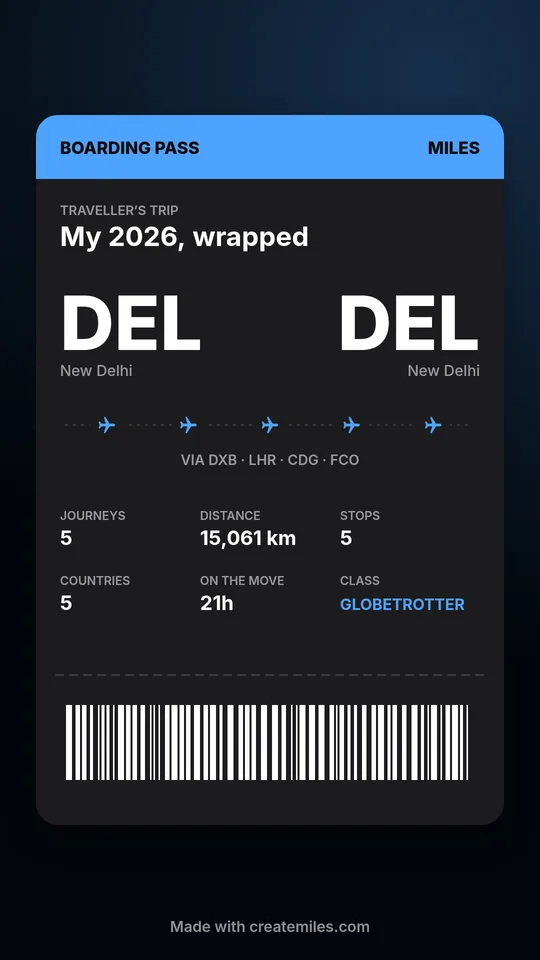
For a recap of a whole year of travel rather than one trip, see what a Travel Wrapped is and how to make one at createmiles.com/wrapped.
Doing it by hand in a video editor
You can make a travel map animation in a general video editor. You would find or export a map image, draw each route segment as a path, and keyframe the line so it grows from city to city. Then you add a marker and a label for every stop, time each one to appear as the line arrives, and move the camera with more keyframes so it follows the route. Curved flight paths and a turning globe are much harder still. For a trip with eight or ten stops, that is usually several hours of work, and changing one stop often means redoing the timing for everything after it. A dedicated tool does the same job from a typed list of places.
Free or paid
The free version makes a 720p, 30 fps video with up to 6 stops, the four free looks and a small “Made with createmiles.com” watermark. A Trip Pass costs $5.99 (₹199 in India) and unlocks one trip for 12 months: unlimited stops, 1080p and 4K, 60 fps, all seven looks and no watermark. It never renews. Pro is $29.99 a year (₹999 in India) and covers every trip. Full details are on the pricing page.